![Inspectly-logo.png]](https://help.inspectly.com/hs-fs/hubfs/Inspectly-logo.png?height=40&name=Inspectly-logo.png)
In this article, you will find a guide on how to insert a front page for your reports – both for global reports and project-specific reports.
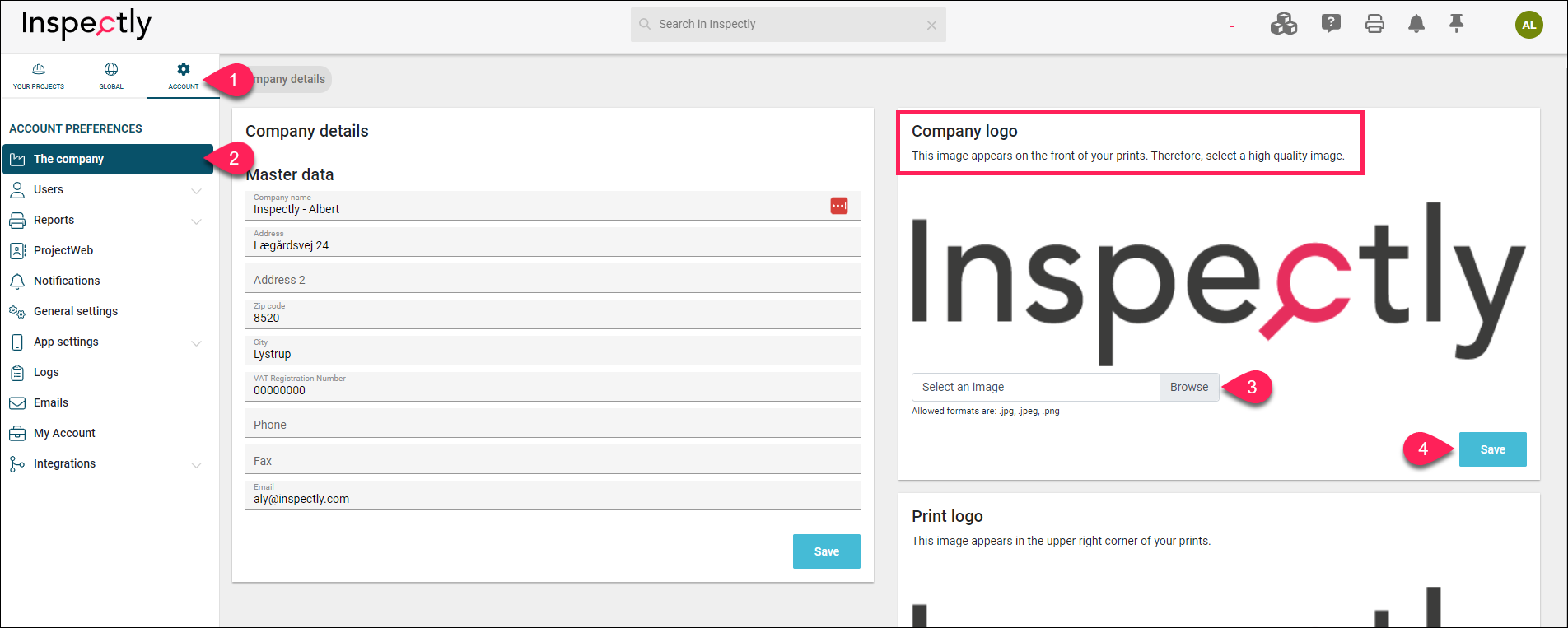
Insert front page for global reports
Account ➜ The Company ➜ Select an image from your computer by clicking ‘Browse’ ➜ Save
Insert front page for project-specific reports
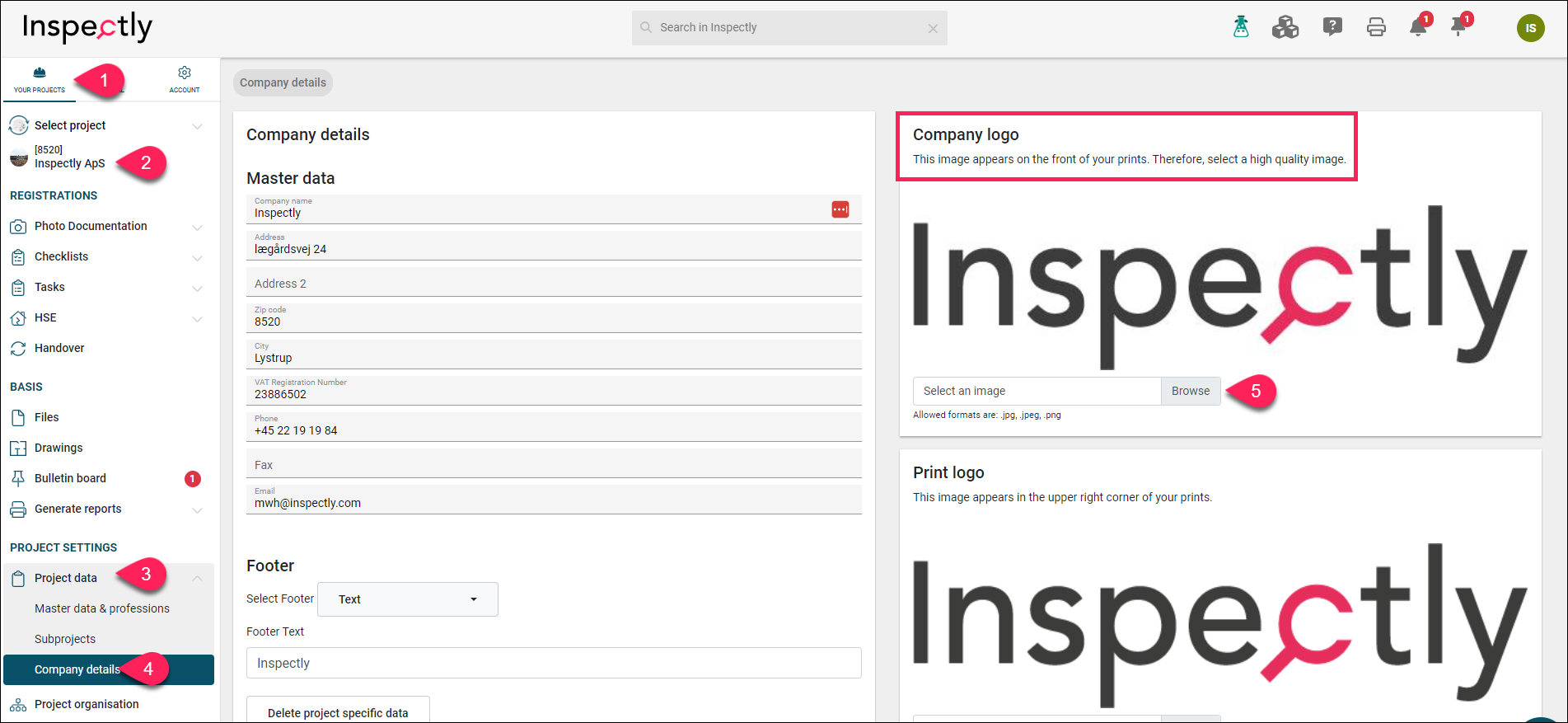
Go to the relevant project ➜ Project data ➜ Company details➜ Select an image under "Company Logo" ➜ Save
Once you have inserted these images under company details, they will appear on the reports that have a front page.
Insert a project image on the project and front page
Go to the relevant project ➜ Project Information ➜ Master data & professions ➜ Select an image under “Cover Image” ➜ Save
Once you insert the image under Master data & professions, it will appear on the printouts that include a front page.
The image inserted here has first priority, meaning it will be placed on report front pages instead of the company logo.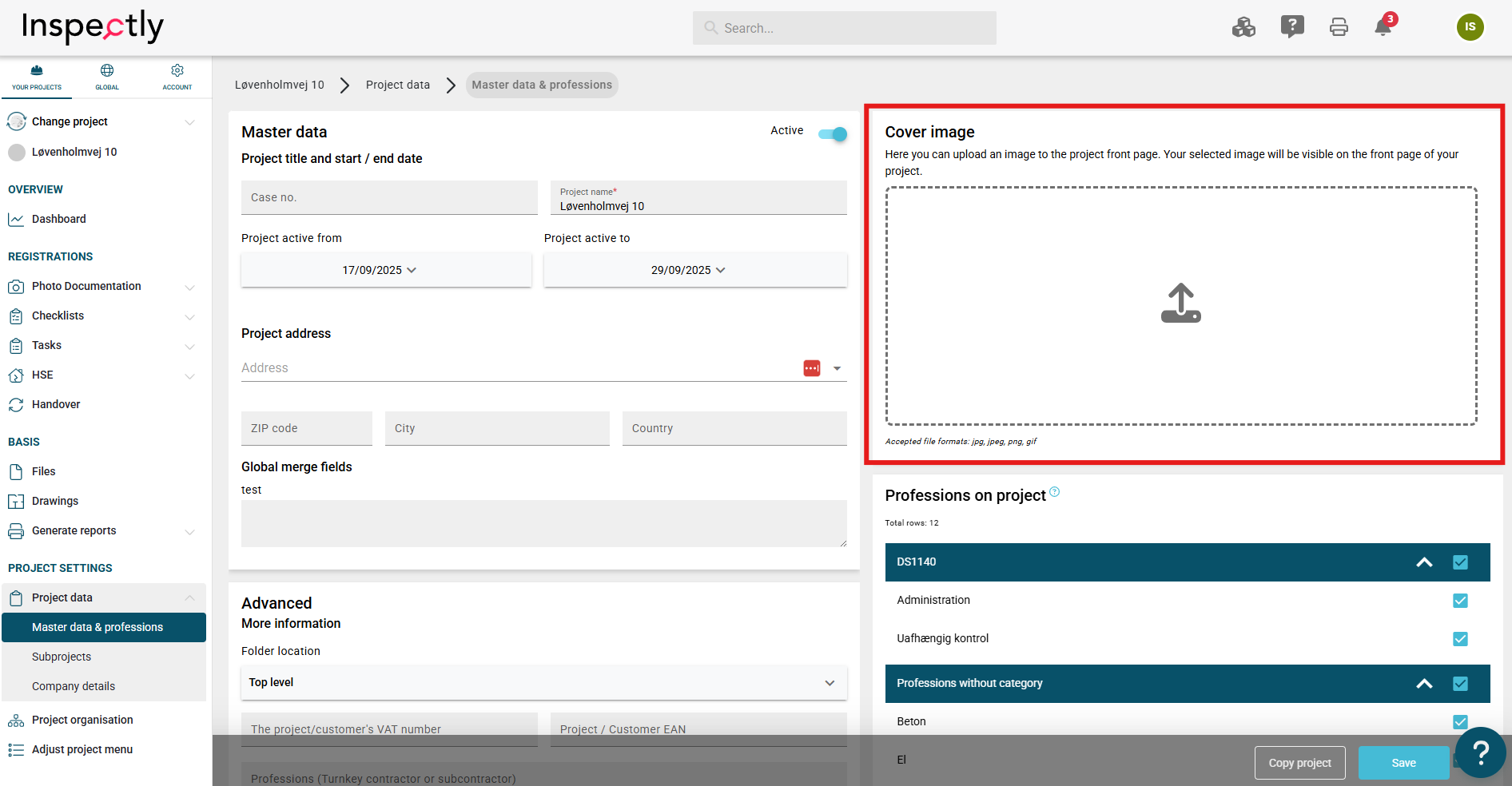
Contact us
If you have any questions, you are always more than welcome to contact our support at support@inspectly.com