![Inspectly-logo.png]](https://help.inspectly.com/hs-fs/hubfs/Inspectly-logo.png?height=40&name=Inspectly-logo.png)
What is a project template?
A project template is a template that you can create in Inspectly, which is used to reuse structures and information when new projects are created.
Furthermore, a project template is the only way to create a project via the app.
A project template can contain:
- Master data
- Building component list
- Milestones
- Digital QA setup
- Control plan / control amount
- Checklists (including project-specific adjustments)
- Files folder structure and the files within the folders (Note! Includes both folders and files)
- Drawings folder structure (Note! It is not possible to upload drawings to a template)
-
Global and project-specific report templates
-
Project menu settings (customize project menu)
-
Project structure/subprojects
-
Project information
-
Link to map
-
Description for reports
-
Show checklist folders in the app
-
Everything related to project information/company details
-
Everything related to project information/project organisation
-
Users with ‘associate with future projects’ are also added to projects created via a template
When you create a new project based on a template, all this information is transferred to the project. This makes it easy and fast to create consistent projects.
Note: Access to the template itself is managed separately under the “Template Access” menu on the left side.
Create a project template
Your projects ➜ Project overview ➜ Hover over "Create" ➜ Click on "Project template"
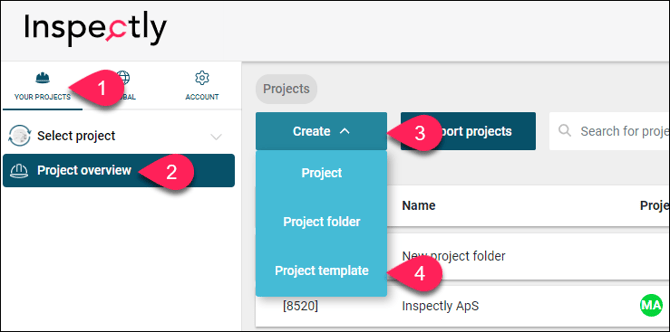
Creating a Project Template is done in the same way as creating a new project and consists of 7 steps:
- Name your template
- Template description
- Create a project structure
- Template access
- Customize project menu
- Place in project folder
- Create template
Create a new project from a template
Your projects ➜ Project overview ➜ Hover over "Create" ➜ Click on "Project"
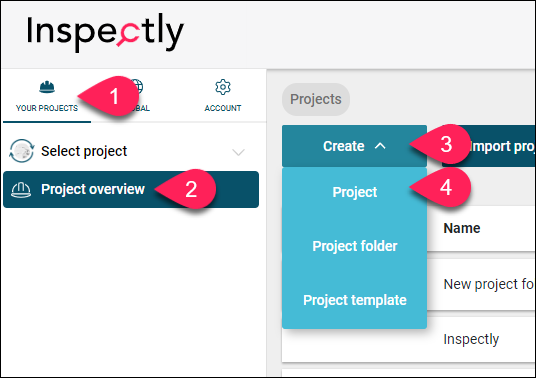
After selecting "Create project," you can choose to create a project based on your project templates.
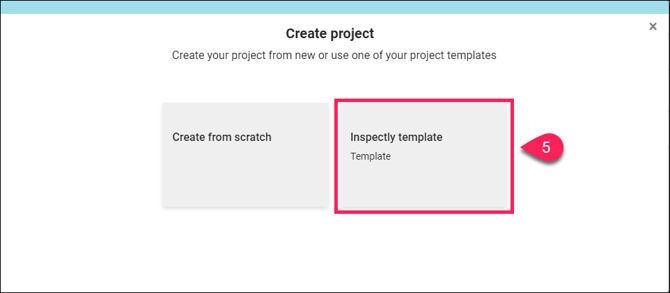
Once you have selected the desired project template, you will automatically begin a creation flow where you can create a new project.
Template access
Your projects ➜ Select project template ➜ Template access ➜ Add users
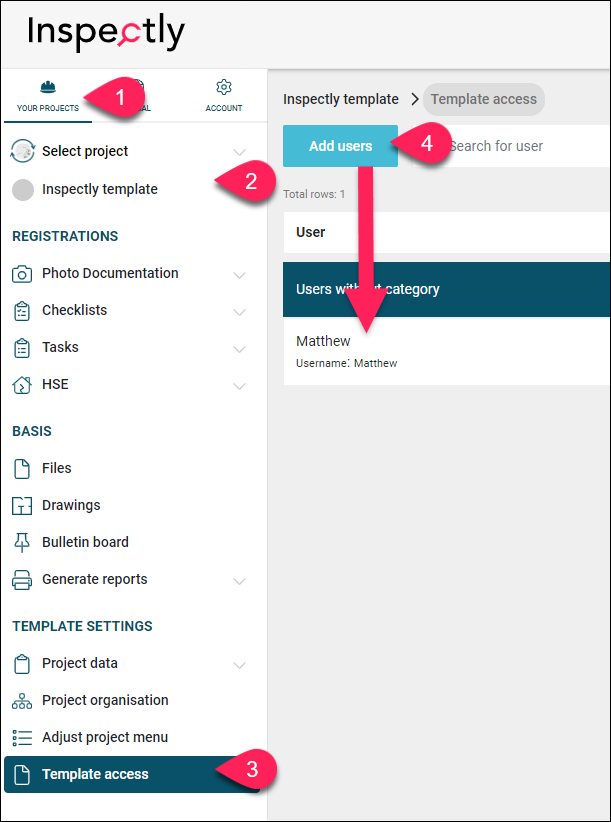
Under "Template Access" in your project template, you need to add the users who should have access to the template and the ability to use it when creating new projects.
This should not be confused with the user list under "Project Organisation," which includes the users who will be associated with new projects created based on the template. Template Access is only about the use of the template, not the projects that are subsequently created.
If a user has access to the template, the user can both edit the template from within the admin page and use the template to create new projects. Editing project templates is done in the same way as editing ordinary projects.
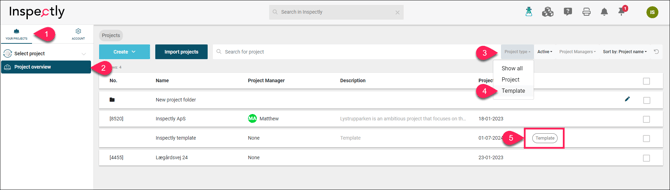
Find project templates in the project overview
Your projects ➜ Click on "Project filter" ➜ Select Template
Copy project templates
Your projects ➜ Click on "Project filter" ➜ Select Template ➜ Project data ➜ Master data & professions
In the lower right corner, you can click ‘Copy project’, after which you will be asked to specify the case number and the name of the new project template you are creating, as well as which elements should be copied.
Contact us
If you have any questions, you are always more than welcome to contact our support at support@inspectly.com